Codex CLI
On this page
Register OwlMeans with the Codex terminal client. Install Node.js 22 or newer and the Codex CLI, then open your project directory.
-
Add the stdio server:
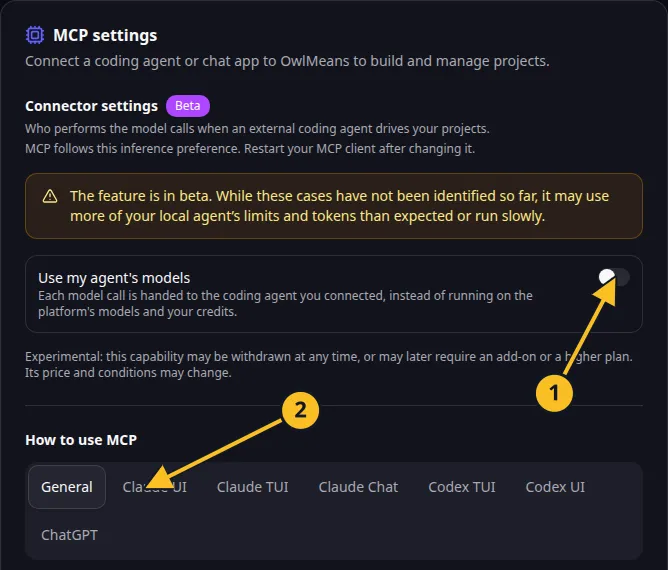
OwlMeans MCP settings: 1, inference preference; 2, client setup tabs.
codex mcp add owlmeans -- npx -y @owlmeans/viable-mcp@^0.1.18 --harness codex- Inspect it with
codex mcp list. - Start Codex and use
/mcpto check active servers.
For timeout or argument control, configure the server table in ~/.codex/config.toml or the supported project .codex/config.toml:
[mcp_servers.owlmeans]
command = "npx"
args = ["-y", "@owlmeans/viable-mcp@latest", "--harness", "codex"]
startup_timeout_sec = 90
tool_timeout_sec = 300
The OwlMeans login happens when its server needs access. For a remote OAuth connection, Codex’s mcp login command handles the remote server’s authorization flow. See the official MCP guide.
Check the connection
- Complete OwlMeans browser sign-in when requested.
- Ask the agent to call
describe_platformandsession_status. - Verify the intended project, workspace and inference mode.
- Ask it to inspect or install the project harness.
- Start a small generation or story workflow.
The examples use a local target. Add --target, cloud as separate arguments for a hosted project. Add --llm, local for delegated inference only when the connected coding agent will handle tasks. Mode selection explains the effects and costs.
Keep access tokens out of committed configuration. Restart the client after changing the server settings. If a tool is absent, inspect the connected server’s tool list and troubleshoot.
Names and marks
OpenAI, ChatGPT and related OpenAI marks belong to OpenAI; Codex is an OpenAI product. Usage policy.
Claude and Claude Code are Anthropic products; their names and marks remain with their respective owner. Usage policy.
Node.js, npx, OAuth names and any associated marks remain with their respective owners or project maintainers. References identify products, standards or source examples. OwlMeans documentation does not imply sponsorship or endorsement by those owners.