Customize your application branding

On this page
Make the generated app recognizable to its audience. Organization defaults help keep several apps consistent; project settings let you choose specific values.
-
Open your account’s organization branding defaults and set the organization name and copyright text.
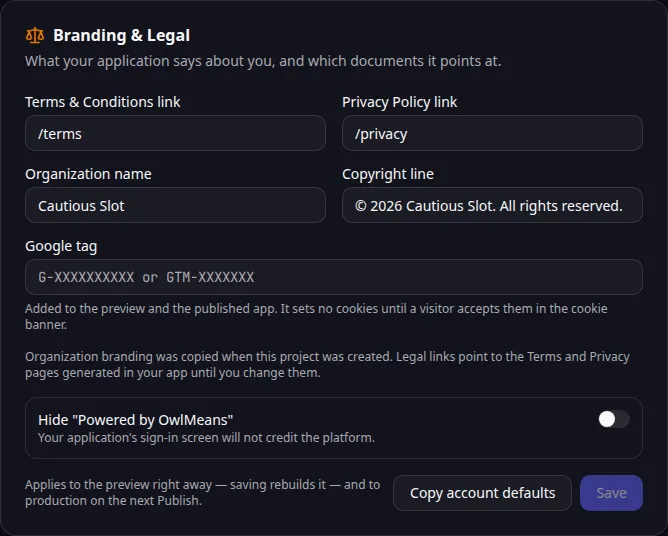
Branding and legal links for the generated application. -
Open the project’s settings and select preview or production.
-
Choose whether the app should use the organization defaults or its own values.
-
Set the legal page links and any supported public settings.
-
Review the app’s header, footer and legal links in the selected scope.
-
On an eligible Pro plan, use the platform credit setting if you want white-label presentation.
Ask the agent for a focused visual change when colors or layout need development. For Task Grove, keep the board readable and status differences visible without relying on color alone.
White label controls let an eligible account hide the platform credit. They do not give permission to use another company’s brand or remove required third-party notices.
See the branding tool reference for supported fields. Review plan capabilities before relying on a paid setting.
Application example
Category: Project and task management. Example: Task Grove, a task board for a small team.
Names and marks
Google names and marks belong to Google LLC. References identify the relevant Google service. OwlMeans documentation does not imply sponsorship or endorsement by those owners.