Invite, edit and remove users

On this page
The Users tab lists the people who can sign in to one app. Add someone by email address, correct their details, switch off their sign-in or remove them. Each change affects only the app you selected.
-
Open the project, choose Users and pick Preview or Production. The Users tab has the columns Email, Name, Role, Home organization, Groups and Permissions.
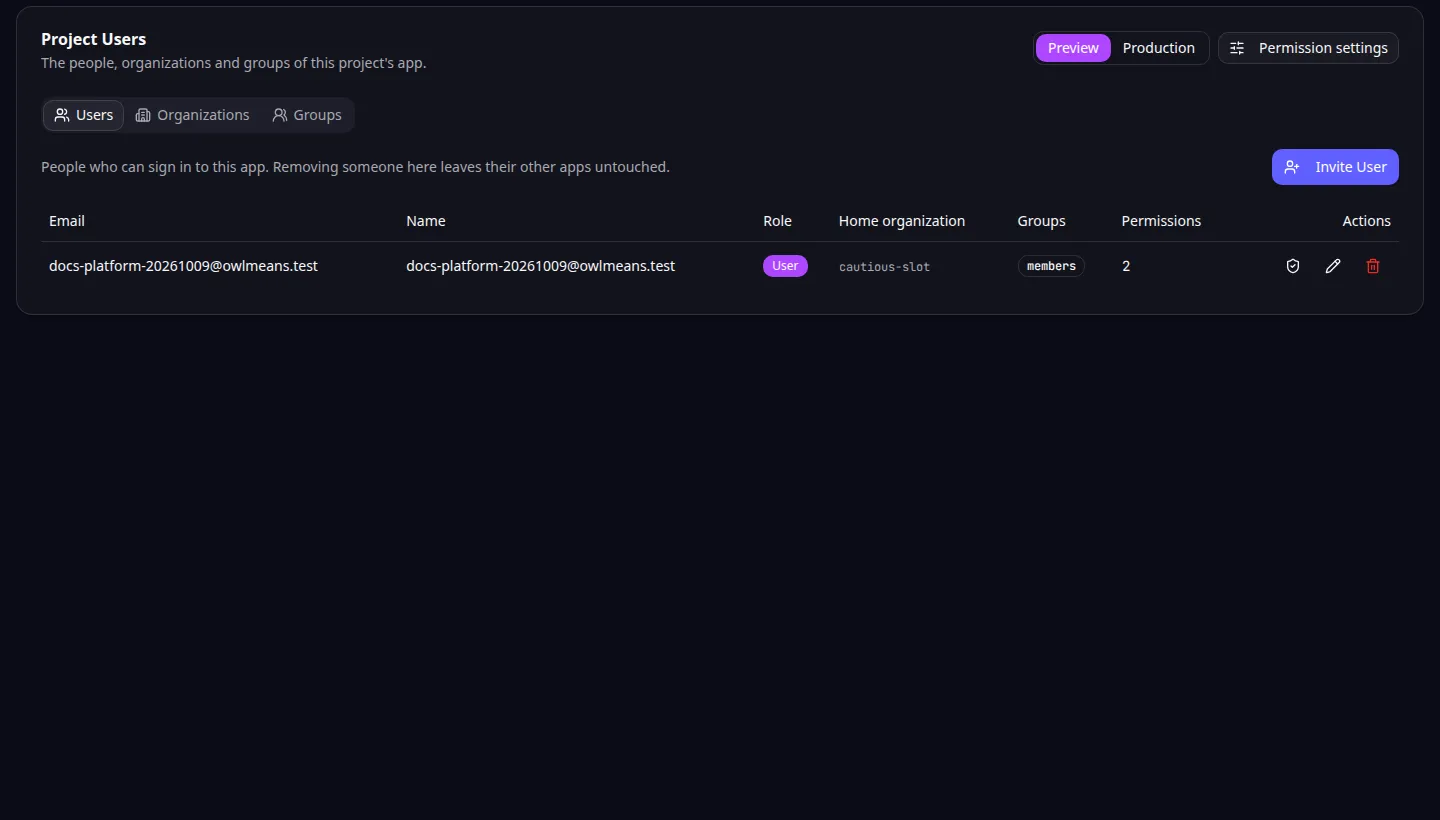
Project users: the table lists everyone who can sign in to the selected app. -
Choose Invite User. Enter the email address, an optional name and a role, then choose Send Invite. The person signs in with that address. Inviting the same address twice keeps one person.
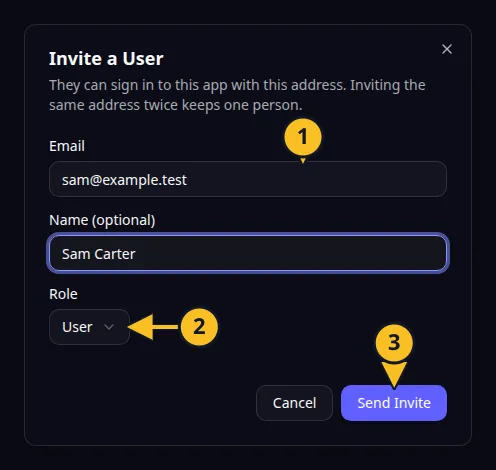
Invite a User: 1, email address; 2, role; 3, Send Invite. -
To change someone, choose the pencil in their row. In Edit User you can change the name and role, or switch on Disabled so they can no longer sign in. The email address is fixed. Choose Save.
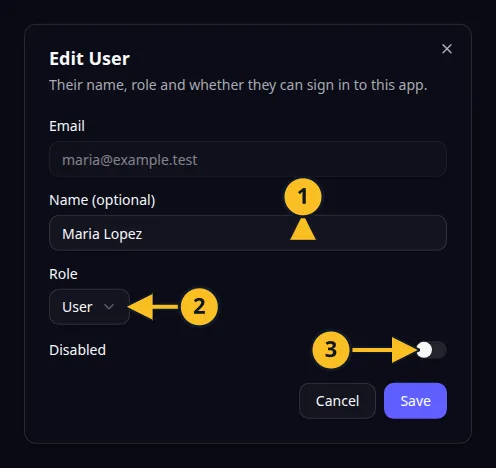
Edit User: 1, name; 2, role; 3, Disabled switch. -
To take someone out, choose the bin in their row and confirm Remove this user? They can no longer sign in to this app, and every permission they hold in it is removed. Their other apps are untouched.
-
To change what someone may do, choose the shield in their row. See Grant and restrict permissions.
A disabled person shows “Disabled” in the Role column. The Permissions column counts the permissions granted to that person.
The roles User, Admin and Guest label the account. What a person may do in the app comes from their permissions, so changing a role does not give or remove access.
The MCP tools offer the same invite, update and remove operations. Back to the section overview.
Application example
Category: Project and task management. Example: Task Grove, a task board for a small team. Invite a teammate as a User, then grant the permissions they need to update tasks.