Use the preview and code editor

On this page
Use the preview to check behavior and the editor to inspect the files behind it.
-
Open your project and select Preview.
-
Wait for the app to be ready. Use the preview’s sign-in flow when the feature requires an account.
-
Try the feature with synthetic records, including empty fields and a denied action.
-
Select Editor to browse the generated files. Read the relevant component or service before editing.
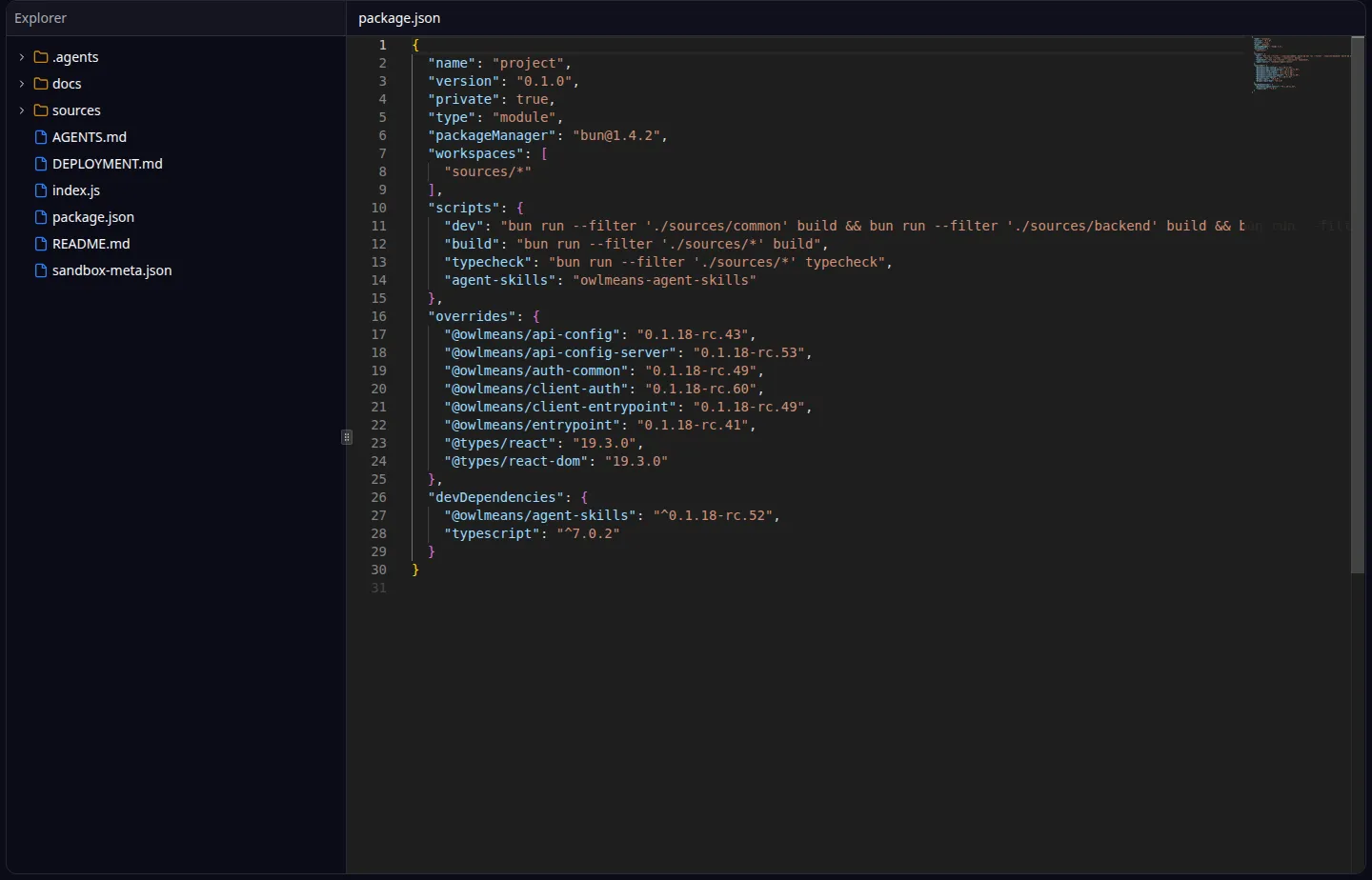
Editor: generated project files and source. -
Save a focused change, then return to the preview and review the build result.
-
If a build fails, read the warning and correct the change before making further edits.
A preview is the development version of your application. A production site is published separately and may have different configuration and sign-in settings.
For Task Grove, create a sample task and move it between board columns. Then sign in as a member who should not edit that task and verify the restriction.
Keep secrets out of browser-facing files. Use the configuration guide for service credentials. If the preview is interrupted, follow maintenance and recovery.
Application example
Category: Project and task management. Example: Task Grove, a task board for a small team.
Names and marks
Visual Studio Code, VS Code, TypeScript and related Microsoft marks belong to Microsoft Corporation. Usage policy.
React, Bun names and any associated marks remain with their respective owners or project maintainers. References identify products, standards or source examples. OwlMeans documentation does not imply sponsorship or endorsement by those owners.