Connect your project to GitHub
On this page
Authorize GitHub access before publishing or synchronizing your project’s source.
-
Open the project controls and find the GitHub card.
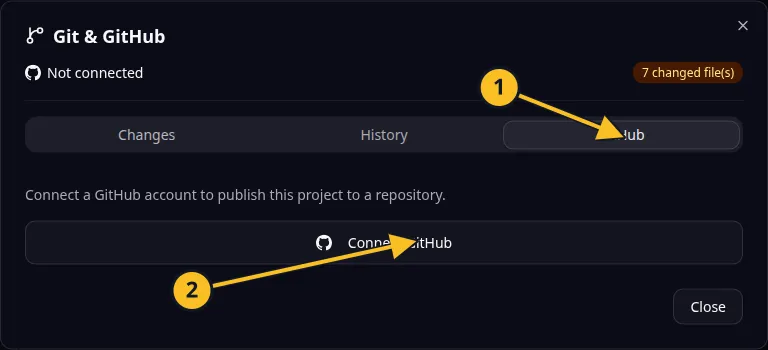
Git dialog: 1, GitHub tab; 2, Connect GitHub. Publishing and synchronization controls appear after connection. -
Select Connect. Complete the GitHub authorization in the browser.
-
Review the account and repository permissions GitHub asks you to grant.
-
Return to the project and wait for the card to show a valid connection.
-
Continue to publish the code when you are ready.
If the card reports an invalid connection, use Reconnect and finish the browser authorization again. Read reconnection for recovery.
For Task Grove, connect the account that should own its source repository. Connection alone does not publish the code or create a running website.
A local project may show only connection controls in the browser. Use your local Git workflow or MCP for its repository operations. The authorization browser step must be completed by a person.
Application example
Category: Project and task management. Example: Task Grove, a task board for a small team.
Names and marks
GitHub and GitHub Copilot are brands of GitHub, Inc. Usage policy.
Git names and any associated marks remain with their respective owners or project maintainers. References identify products, standards or source examples. OwlMeans documentation does not imply sponsorship or endorsement by those owners.