Create your first web app
On this page
Turn a short description into a project you can develop and preview. Have a small first version in mind; you can add features after reviewing its foundation.
Create it
-
Sign in and open Start a project.
-
In Application Description, say who the app is for, what records it keeps and what each role can do. Number 1 in the illustration points to this field.
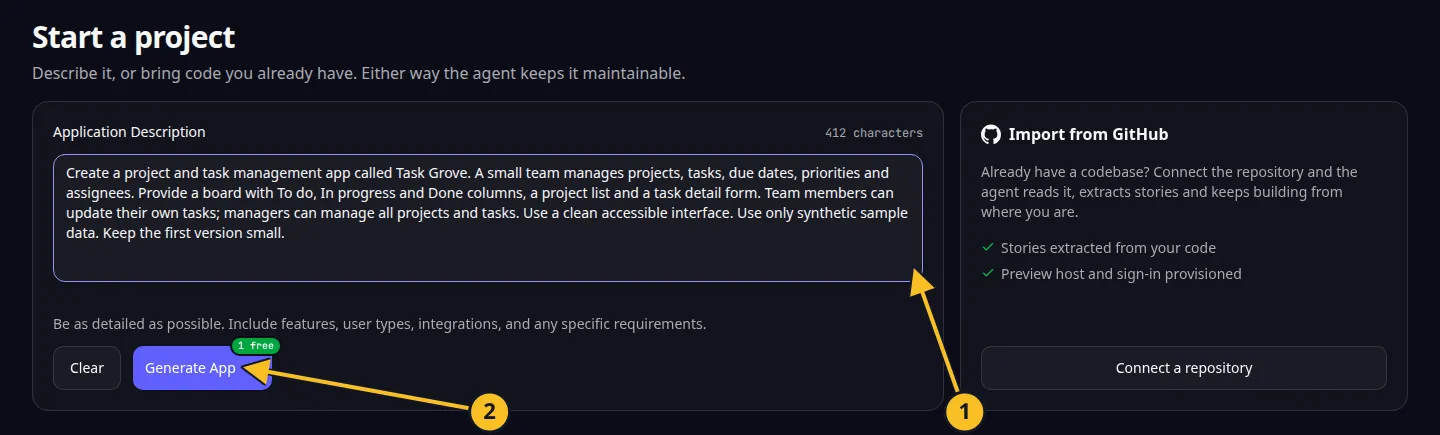
Start a project: 1, application description; 2, Generate App. -
Select Generate App (2). Check any allowance or credit confirmation presented to you.
-
Wait for the specification. Read the proposed name, behavior and scope. Use Edit to correct the description before proceeding.
-
Select Accept when the specification describes the app you want. Initialization builds the application foundation and screens.
-
Open the project board. Choose one planned story to implement, then use Preview to try it.
A useful first description
Build Task Grove, a project and task management app for a small team. Tasks have a title, assignee, due date, priority and status. Members update their own tasks. Managers manage all projects and tasks. Include a board with To do, In progress and Done columns. Keep the first version small and use synthetic sample data.
The initial app can include placeholder screens for planned features. A screen being visible does not mean every associated user story has been implemented. Develop the story and check its behavior.
If creation is still running, keep the existing project open and follow its status. Starting again creates another request and may consume another allowance or credits. See limits.
Application example
Category: Project and task management. Example: Task Grove, a task board for a small team.
Names and marks
GitHub and GitHub Copilot are brands of GitHub, Inc. Usage policy. OwlMeans documentation does not imply sponsorship or endorsement by those owners.