Manage organizations and members

On this page
An organization (an organization entity) is one of your customers: a group of people who share records and permissions in your app. The Organizations tab lists every organization that has members in the app you selected.
-
Open the project, choose Users, pick Preview or Production and open the Organizations tab. The table has the columns Title, Slug and Members.
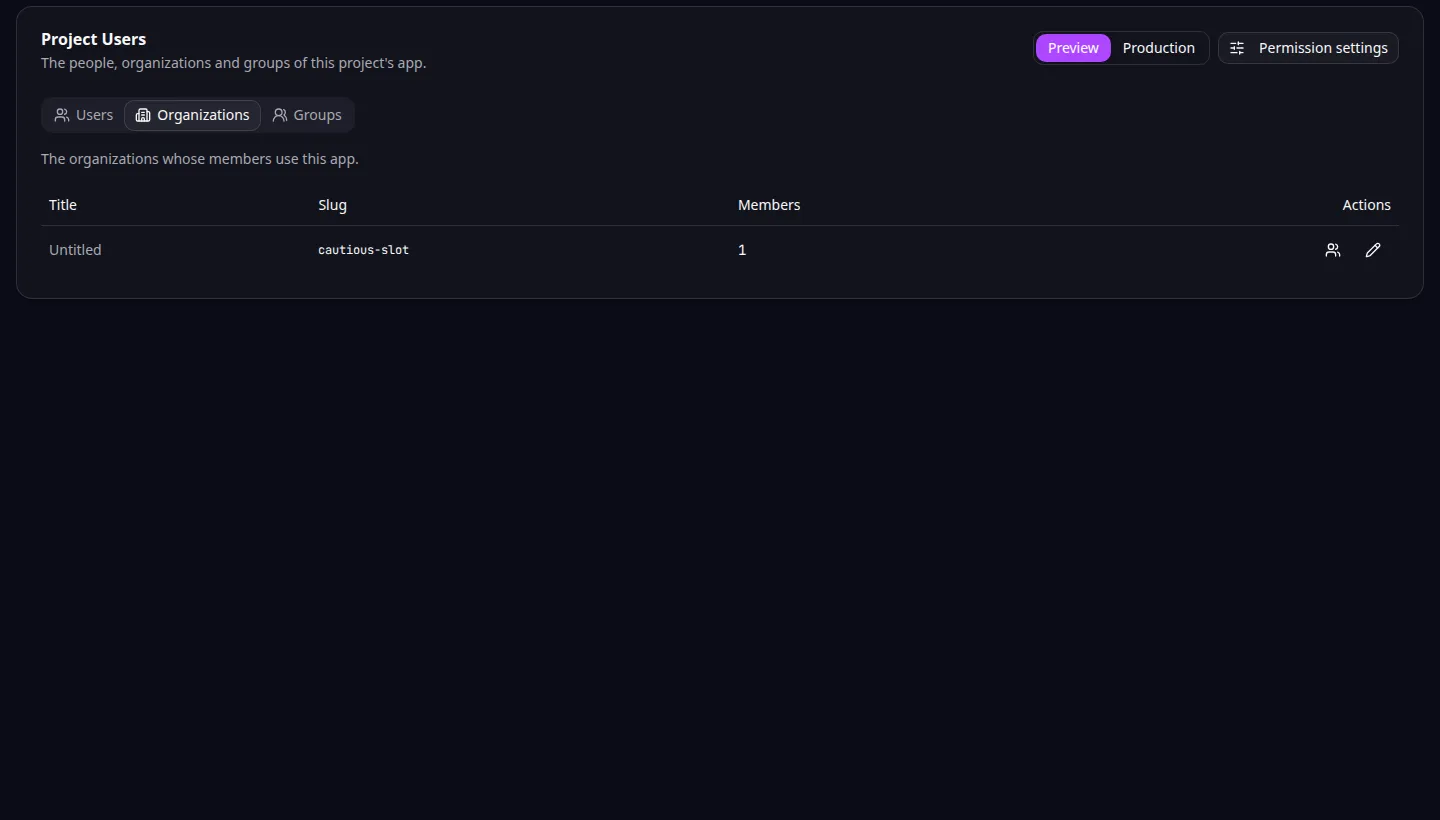
Organizations: the customer organizations that have members in this app. -
To rename an organization, choose the pencil in its row. In Rename organization, enter a Title and choose Save. An organization without a title shows “Untitled”. The slug is shown for reference.
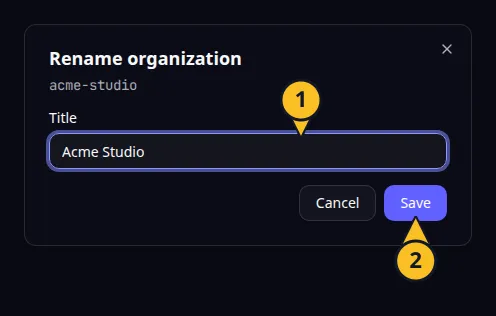
Rename organization: 1, Title; 2, Save. -
To manage its people, choose the people button in the row. The dialog “Members of” the organization lists each member with the columns Member, Owner and Groups.
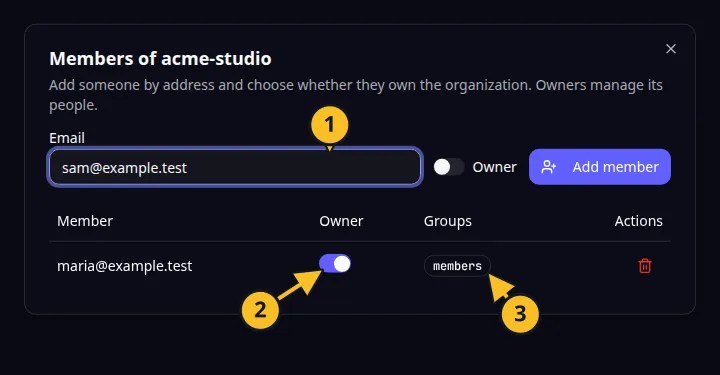
Members of an organization: 1, Email of a new member; 2, Owner switch; 3, the member’s group. -
To add someone, enter their Email, tick Owner if they should manage the organization, and choose Add member.
-
Use the Owner switch in a member’s row to make them an owner or take it away. Owners manage the organization’s people.
-
To remove someone, choose Remove member and confirm. They leave the organization and lose every permission bound to it.
A member with a Managed badge was added by the platform for your own team. It cannot be changed here. See Understand your team’s managed access.
Some changes are refused to keep an organization workable: it must keep at least one owner, and a person’s own organization cannot be removed from them. Troubleshoot access problems lists the messages.
Until an organization has a member in the selected app, the tab says “No organization has members in this app yet.” Read Build for multiple customer organizations to plan the separation, and the MCP organization tools to manage it from an agent. Back to the section overview.
Application example
Category: Project and task management. Example: Task Grove, a task board for a small team. Give each customer team its own organization, with one owner who invites the rest.