Review everyone who uses your apps

On this page
Users & Security lists everyone who signs in to the apps of all your projects, in one place. It is for review. You change people and permissions in each project’s own Users view.
-
In the top navigation, beside Billing and Settings, choose Users & Security. On a narrow screen it is in the menu.
-
Read the table. It has the columns Email, Name, Role, Home organization, Groups and Permissions. A person who has been disabled shows “Disabled” instead of a role.
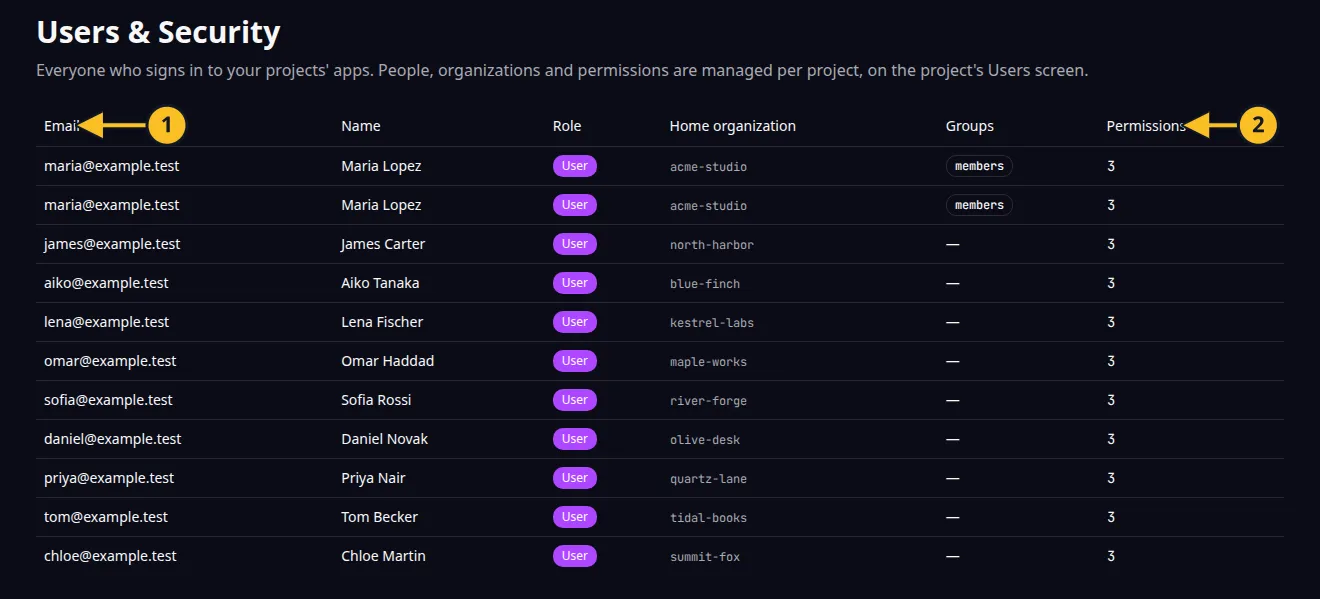
Users & Security: 1, first column; 2, last column. The table has no action buttons. -
Use the list to answer questions across projects: who has access, which organization they belong to, which groups they are in and how many permissions they hold.
-
To change anything, open the project, choose Users and pick Preview or Production.
The list has no action buttons by design. It cannot invite, edit or remove anyone.
The page is described as “Everyone who signs in to your projects’ apps.” If it says “No users yet.”, nobody has signed in to or been invited to any of your apps.
This list is about the people who use the apps you build. It is separate from the people who sign in to OwlMeans Platform with your account. For production sign-in settings see Configure production sign-in. Back to the section overview.
Application example
Category: Project and task management. Example: Task Grove, a task board for a small team. Before inviting a new customer, check that no former contractor still appears in the list.